Subscribe

RSS Feed (xml)

Powered By

Powered by Blogger

2016年1月27日 星期三

How to install Webmin on CentOS 7


Webmin is a web-based interface for system administration for Unix or Linux. It is used to manage service like Network, iptables, Cron jobs, Apache, Samba File sharing, DNS and much more. I use webmin to mange internal server over 10 years. let me introduce the installation of webmin on Centos 7 platform.

First, create a new file "webmin.repo" in "/etc/yum.repos.d/"
vi /etc/yum.repos.d/webmin.repo

and paste below line:
[Webmin]
name=Webmin Distribution Neutral
#baseurl=http://download.webmin.com/download/yum
mirrorlist=http://download.webmin.com/download/yum/mirrorlist
enabled=1

Install webmin GPG key using below command.
rpm --import http://www.webmin.com/jcameron-key.asc

Now, update the repositorys:
yum check-update

Install webmin
yum install webmin -y

Start the service and make it start automatically
chkconfig webmin on
service webmin start

By default, Webmin will listen on port 10000. Enable webmin Port:
firewall-cmd --add-port=10000/tcp

Now, open https://your-ipaddress:10000 in your browser and enter your root username and password:

2016年1月22日 星期五

Microsoft Outlook cannot forward any email to external address

If your users create outlook rule to forward their emails to an external email address automatically, these rules will not work and the forwarded email will never leave your exchange server.

By default, Exchange server blocks any automatic forwarding message. To solve this problem you will need to follow the below steps.

Exchange 2013 and PowerShell
In Exchange 2013, the only way to view or change the configuration for automatic replying and forwarding to external address is via the Exchange Management Shell (EMS) with PowerShell commands. These PowerShell commands can also be used with Exchange 2007 and Exchange 2010.

To get the currently configured Remote Domains, use:
Get-RemoteDomain

The following command will see the current configuration for this remote domain use:
Get-RemoteDomain Default | fl


In the result list, look for the settings for AllowedOOFType, AutoReplyEnabled and AutoForwardEnabled. You can directly filter your results list for these properties by using:
Get-RemoteDomain Default | fl AllowedOOFType, AutoReplyEnabled, AutoForwardEnabled


To change the settings, use the Set-RemoteDomain command.
§  Enable automatic replies
Set-RemoteDomain -AutoReplyEnabled $true
§  Enable automatic forwards
Set-RemoteDomain –AutoForwardEnabled $true
§  Enable OOF for Outlook 2003 and previous (for Exchange 2007 and 2010 support)
Set-RemoteDomain –AllowedOOFType $ExternalLegacy
To change all these properties at once, you can use:
Set-RemoteDomain Default -AutoReplyEnabled $true –AutoForwardEnabled $true –AllowedOOFType $ExternalLegacy


Exchange 2007/2010

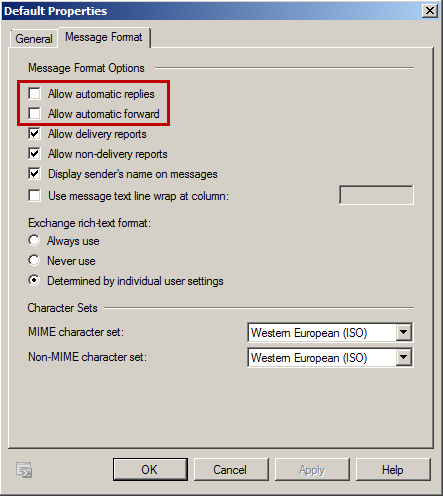
In Exchange 2007/2010 “Internet Message Formats” is replaced by “Remote Domains”
1. Open Exchange Management Console
2. Organization Configuration
3. Hub Transport
4. Remote Domains tab
5. Right click properties on Default
6. Message Format tab (for Exchange 2010) / Format of original message sent as attachment to journal report (for Exchange 2007)
7. Check “Allow automatic forward”


Exchange 2003
1. Open Exchange System Manager
2. Expand Global Settings
3. Locate Internet Message Formats
4. In the right-hand panel, right click Properties on “Default”
5. In the Advanced tab, check the option “Allow Automatic Forward”